
Version V0.1 · Foundation & Customisation Update
OMER CLIENT
Make Windows yours.
A modular Windows customisation and performance client built around personalisation, control and efficiency.
- V0.1 current version
- Windows 11 / 10 2004 or newer
- x64 architecture
- 58.7 MB installer
- Not code-signed why?
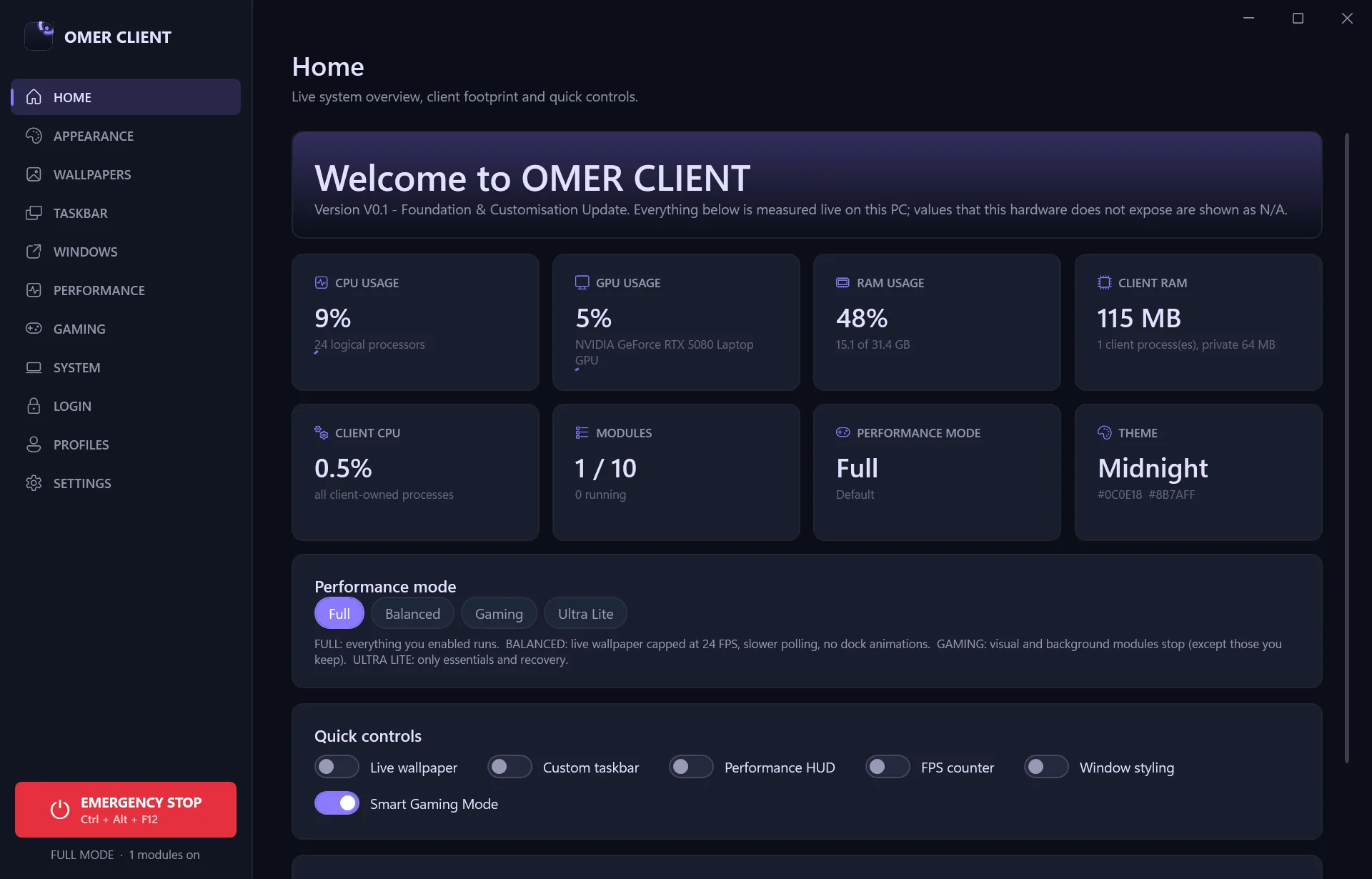
01 · Custom taskbar
A dock that actually works.
Pinned apps, running windows, one-click switching, active indicators, clock, date and live CPU/RAM. Six presets from Windows Minimal to Floating Dock and Full Width, and full control over colour, transparency, blur, height, width, corners, floating distance, borders, icon size, spacing, alignment, hover animation and monitor.
- Imports your current Windows taskbar pins
- Optional screen-space reservation through the documented AppBar API
- The original Windows taskbar is never modified on disk and comes back with one click
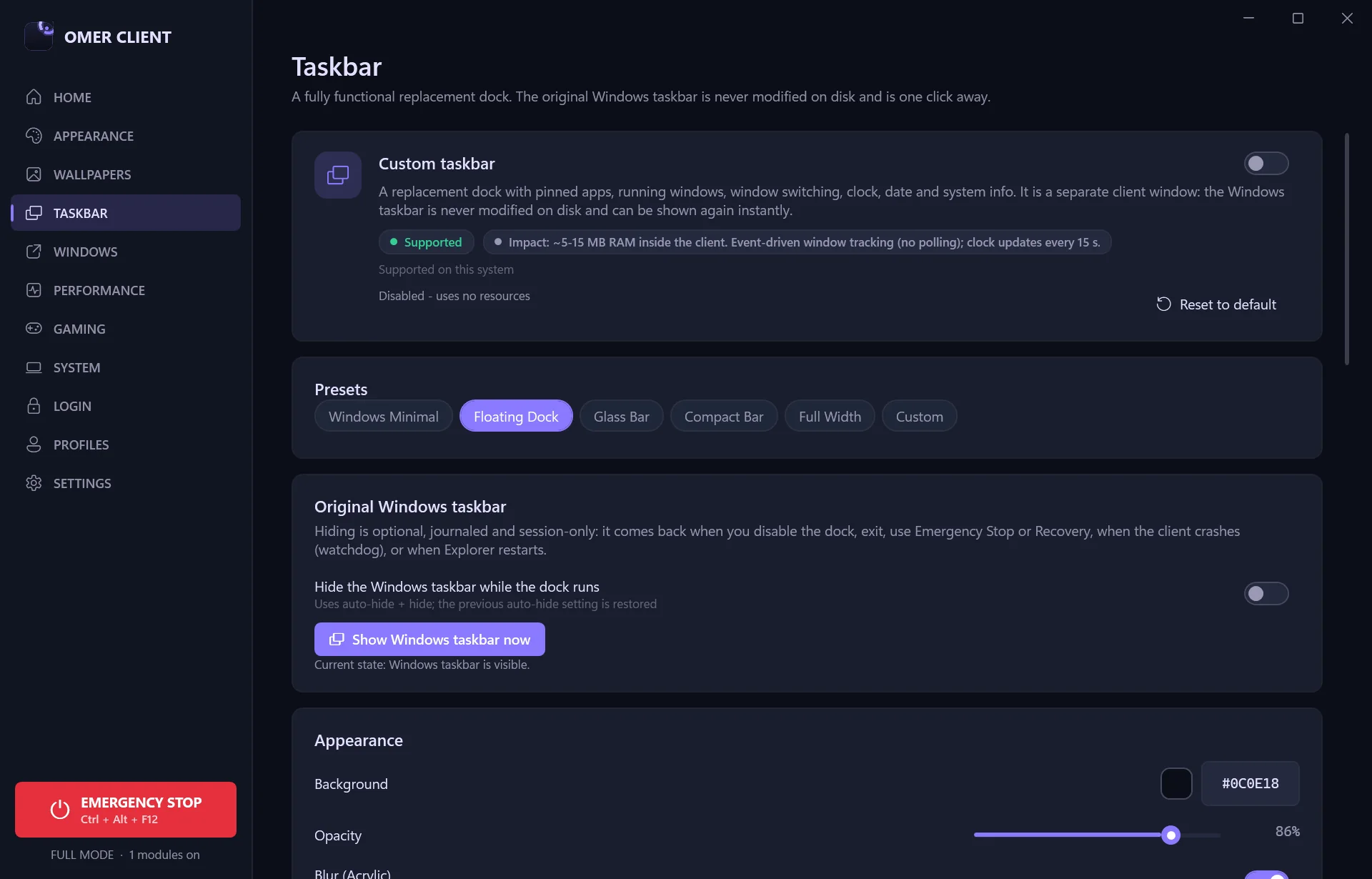

02 · Live wallpapers
Motion behind your icons. Not on top of them.
MP4, WebM and GIF wallpapers decoded on the GPU (Media Foundation + Direct3D 11) in a separate, killable helper process, placed in the real desktop layer behind your icons. FPS limit (15 / 24 / 30 / 60 / unlimited), brightness, contrast, saturation, blur, speed, loop, sound and a different file per monitor.
- Measured 30.0 frames presented per second at a 30 FPS cap
- Pauses when covered, when locked, when the display sleeps and on battery
- Fully stopped in Gaming mode - the helper exits and its decoder memory is released
Static wallpapers use the documented Windows API per monitor, and the original is recorded so it can always be restored. The Wallpaper Explorer browses freely licensed images from Wikimedia Commons with author and licence on every file, plus 23 original wallpapers included.
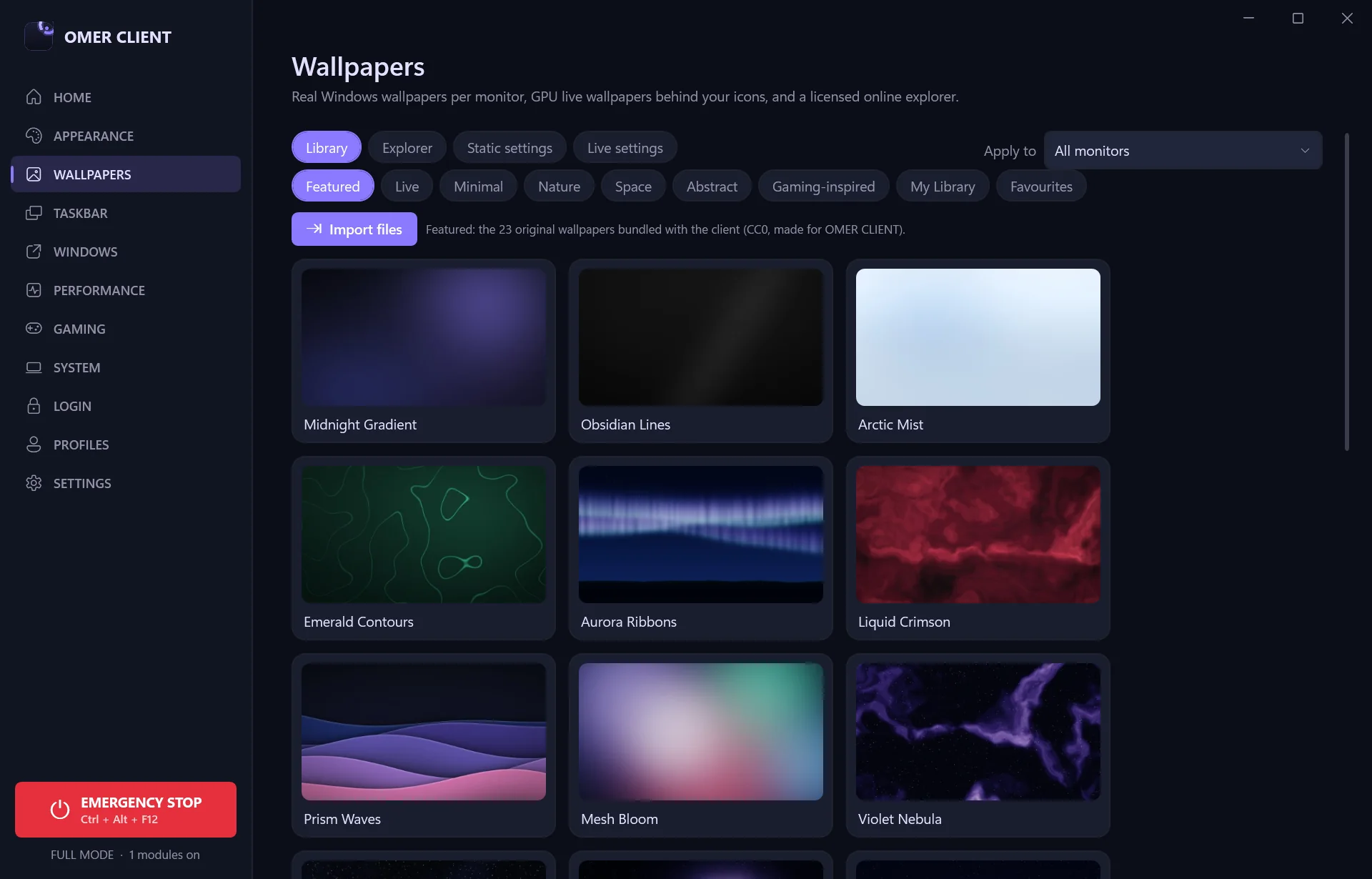
03 · Global theme engine
Four colours. Everything follows.
Five designed themes - or your own four colours with hex input and a picker. Font, size, corner radius, transparency, animation intensity and speed apply live to the client, dock, HUD, intro and previews, with per-module overrides. Rename the client or hide the branding completely.
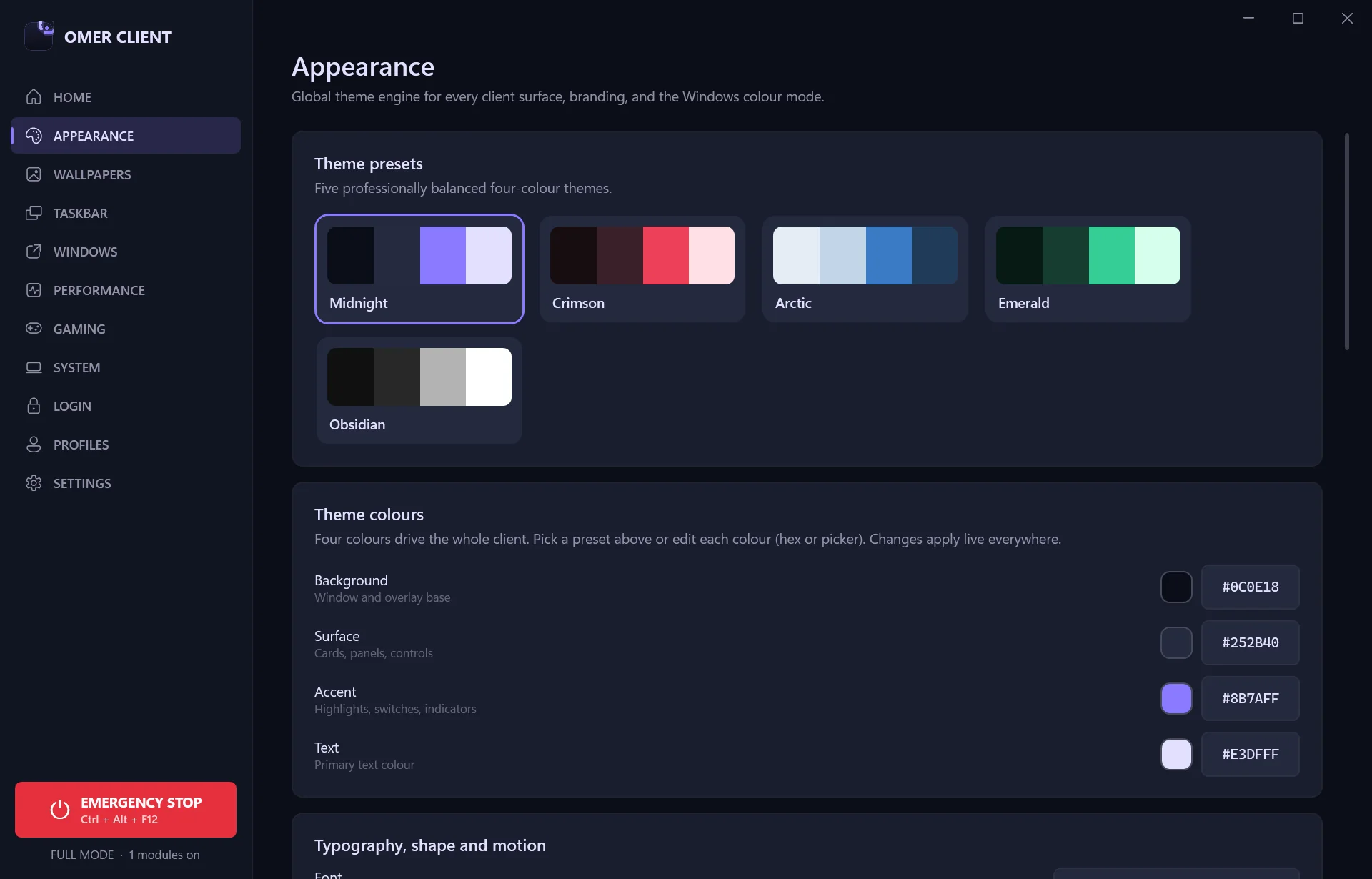
04 · Performance HUD
Real numbers, or an honest N/A.
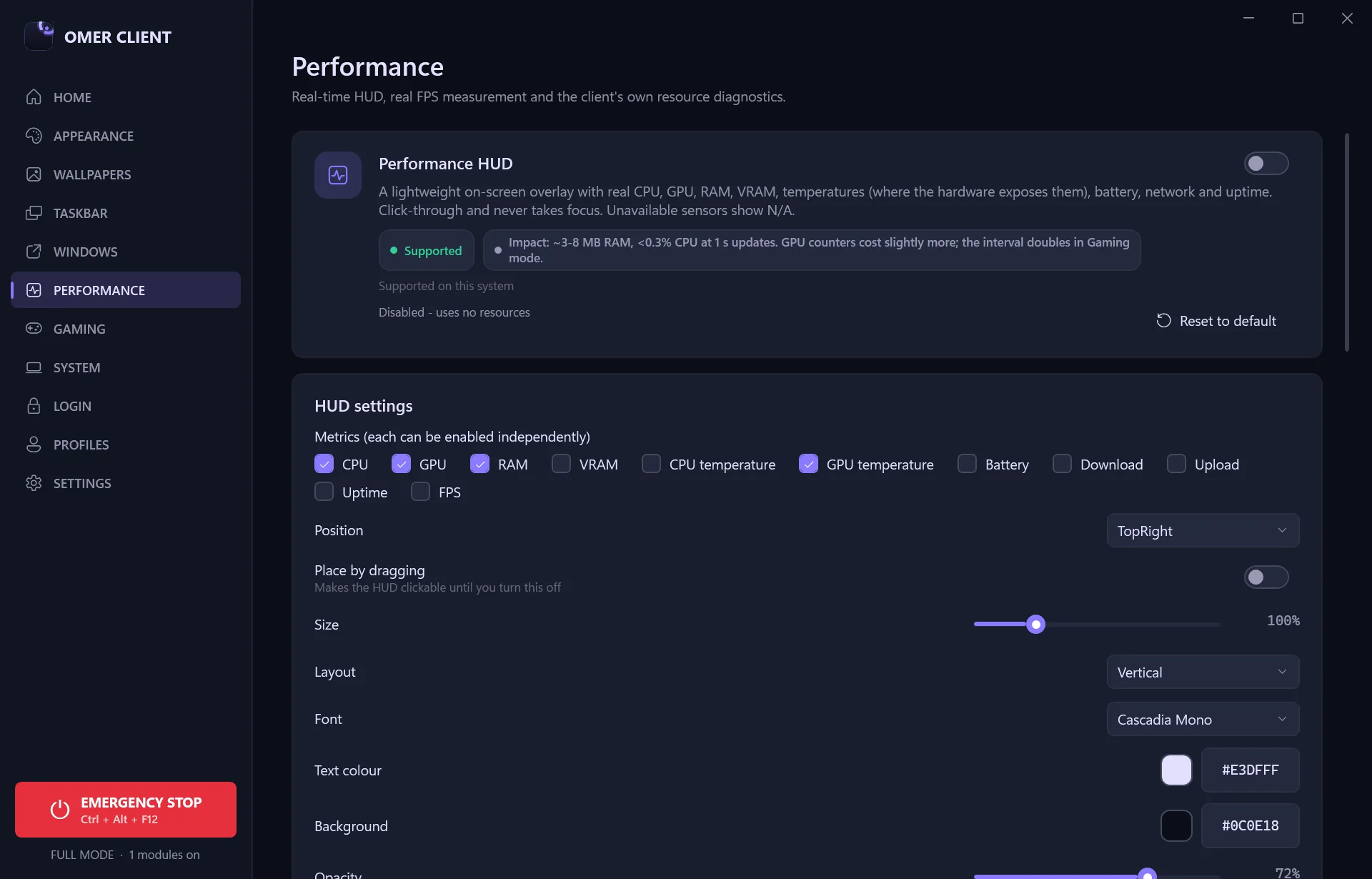
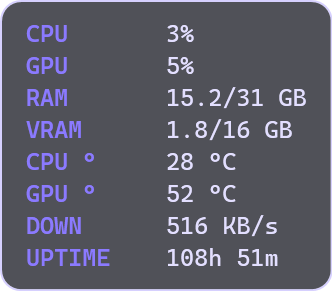
CPU, GPU, RAM, VRAM, GPU and CPU temperature, battery, network and uptime in a click-through overlay that never takes focus. Choose each metric, position (or drag it), size, font, colours, opacity and update rate; show it always, only in games or only on the desktop.
The FPS counter uses Intel PresentMon to read Windows' own frame-presentation events: no injection into games, no estimates, never the monitor refresh rate. Windows restricts this tracing to administrators, so it asks once through UAC - decline and it simply stays hidden.
05 · Smart Gaming Mode
It gets out of the way when you play.
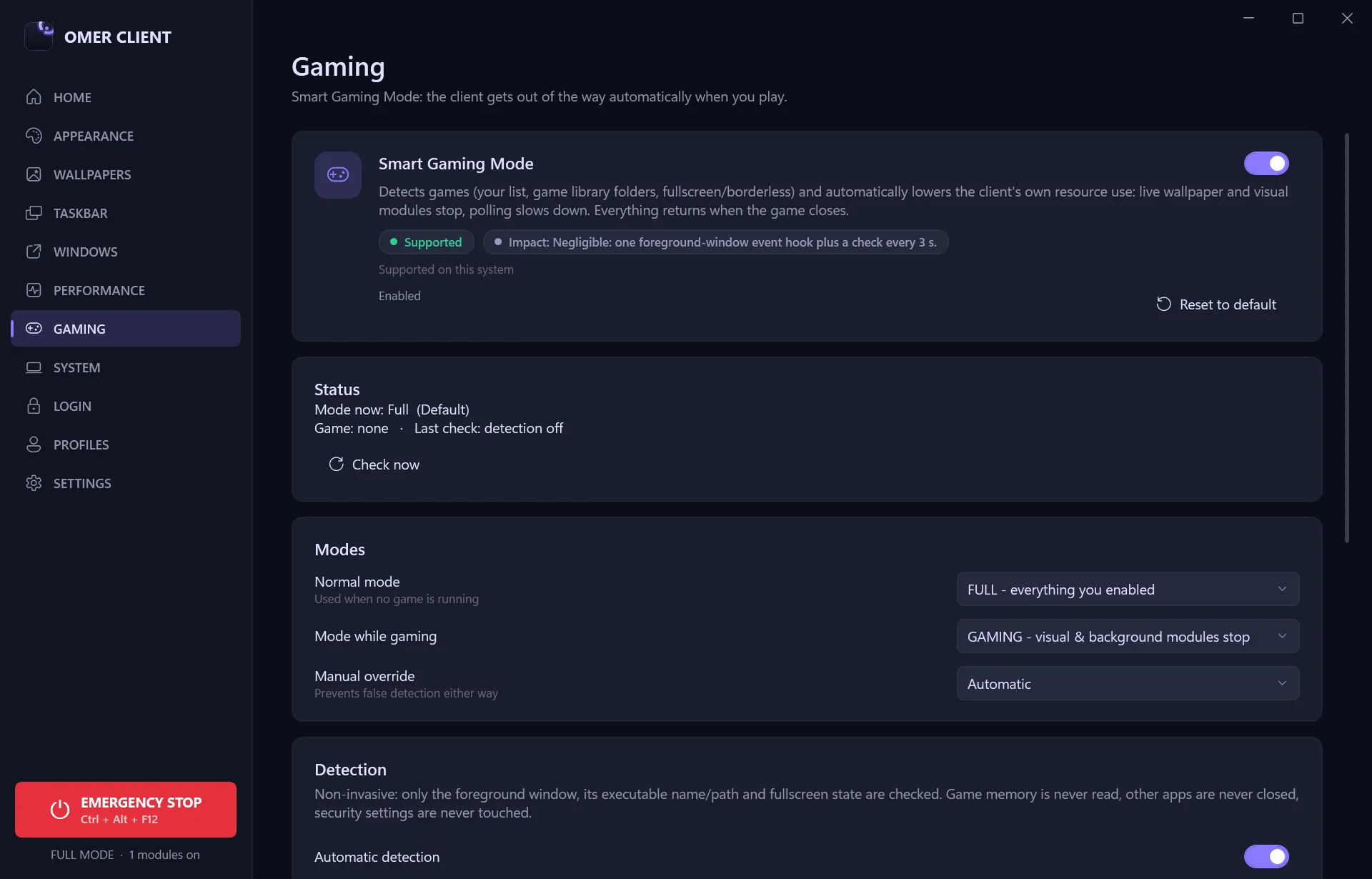
Games are detected without touching them - your list, game library folders, fullscreen or borderless windows. The client then drops to the mode you choose and comes back exactly as it was when the game closes.
| FULL | Everything you enabled runs. |
|---|---|
| BALANCED | Live wallpaper capped at 24 FPS, slower polling, no dock animations. |
| GAMING | Live wallpaper, HUD and visual modules stop, polling halves. Keep the FPS counter or anything else you choose. |
| ULTRA LITE | Only essentials and recovery. The Windows taskbar comes back. |
Never alters game memory, never closes other apps, never changes security settings.
06 · Emergency Stop and recovery
One button undoes everything.
Every Windows change is written to a durable restoration journal before it is applied. Ctrl + Alt + F12 or the red button:
- stops every module, overlay and live wallpaper
- shows the original Windows taskbar
- restores window appearance, wallpaper and Windows colour mode - only what the client changed
- disables start with Windows and exits; you restart it yourself, in safe mode
Standalone Recovery tool
OMER CLIENT Recovery is in your Start menu and works without opening the client.
Crash watchdog
If the client is killed, a tiny watchdog restores the taskbar and other session changes automatically.
Respects your later changes
Settings you changed yourself after the client did are detected and left alone.
Tested on real Windows 11 25H2 hardware for V0.1: Emergency Stop, hard-kill crash recovery, the Recovery tool and the uninstaller all restored the original taskbar, wallpaper and settings.
Real screenshots
Rendered from the actual V0.1 application windows.
System requirements
- Windows
- Windows 11 (all features). Windows 10 version 2004 or newer: supported, but window colours/corners/backdrops and acrylic glass need Windows 11.
- Architecture
- 64-bit (x64)
- Disk
- about 160 MB
- Memory
- 4 GB or more recommended
- Graphics
- DirectX 11 GPU for live wallpapers
- Runtime
- None to install: .NET 10 is included
- Rights
- Standard user. Administrator approval only for the optional FPS counter.
Installation
- Download
OMER-CLIENT-Setup-V0.1-x64.exebelow. - Optional but recommended: check its SHA-256 (PowerShell:
Get-FileHash .\OMER-CLIENT-Setup-V0.1-x64.exe) against the value on this page. - Run it. Because the installer is new and not code-signed, Windows SmartScreen may say "Windows protected your PC". If the checksum matches, choose More info → Run anyway. Never turn off your security software.
- Follow the wizard: install location, Start menu shortcut, optional desktop shortcut and optional start with Windows. No administrator rights needed.
- To remove it: Settings → Apps → OMER CLIENT → Uninstall. Client changes are restored and you choose whether to keep your profiles.
Release notes - V0.1 "Foundation & Customisation Update"
New
- Native WPF client with glass theme engine, 5 themes, custom colours, fonts, corners, motion and branding control
- Static wallpapers per monitor with adjustments; GPU live wallpapers (MP4, WebM, GIF) behind desktop icons
- Wallpaper Explorer for Wikimedia Commons with attribution, plus 23 original CC0 wallpapers
- Custom dock with 6 presets, pins, running windows, clock, system info, auto-hide and AppBar mode
- Per-app window styling (DWM), Always On Top, snapping, smooth moves and saved layouts
- Performance HUD, PresentMon FPS counter and a diagnostics page with the client's own measured usage
- Smart Gaming Mode with FULL / BALANCED / GAMING / ULTRA LITE
- Direct controls: master + per-app volume, output device, power plan and mode, brightness, battery, quick launch, global keybinds
- Post-login intro (photo, GIF, video, sound, checkmark, 0-2000 ms animation) and a sign-in appearance preview
- Profiles with validated .omerprofile export/import and preview
- Emergency Stop, restoration journal, crash watchdog, safe mode, standalone Recovery tool
Known limitations
- FPS counter needs administrator approval each session; overlays cannot draw over exclusive-fullscreen games
- CPU temperature uses the ACPI thermal zone (not every PC exposes the CPU die temperature to standard apps); unavailable sensors show N/A
- The dock does not host notification-area (tray) icons or widgets
- Window colours/transparency are ignored by apps that draw their own frame (some browsers, Electron, WPF apps)
- The real Windows sign-in screen is not modified in V0.1; the login designer is a preview only
- Default audio output switching uses an undocumented Windows interface and reports when Windows refuses
- Installer is not code-signed
Download OMER CLIENT V0.1
Free. No account. Nothing else bundled.
DOWNLOAD FOR WINDOWSPrivacy and safety
- No telemetry, analytics, account or advertising - in the app and on this website
- Network access only when you use the Wallpaper Explorer (Wikimedia Commons)
- Never collects passwords, PINs or personal files; never replaces the Windows sign-in
- Never disables Defender, antivirus, Secure Boot, BitLocker or Windows Update
- No code injection into other apps or games; no interaction with anti-cheat
- Runs as a standard user; profiles cannot contain programs, scripts or commands
FAQ
Will it break my Windows?
It only changes appearance settings you ask for, records the original first, and Emergency Stop, the Recovery tool and the uninstaller put everything back. It never touches system files.
Why does SmartScreen warn me?
The installer is new and not code-signed, so Windows has no reputation for it yet. Compare the SHA-256 on this page with Get-FileHash before running it.
Is it safe to use with online games and anti-cheat?
It never injects into games or reads their memory. Game detection only looks at the foreground window, and the FPS counter uses Windows' own performance events through PresentMon. As with any overlay, check your game's rules.
Why does the FPS counter need administrator approval?
Windows only lets administrators read the frame-presentation events. Decline and the counter stays hidden instead of showing a fake number.
Does it change my real sign-in screen?
No. The intro plays after you have signed in normally. The login designer is a clearly labelled preview that accepts no input.
How much does it slow my PC down?
Measured on the release build: 22 MB and about 0.01% CPU idle in the tray; 138 MB with the window open; 192 MB with a live wallpaper; 47 MB in Gaming mode.
Can I rename it or hide the name?
Yes - Appearance → Branding. The installer stays OMER CLIENT, but the running interface is yours.